
Vue lecture

Il y a de nouveaux articles disponibles, cliquez pour rafraîchir la page.
🔲 ☆

A Santa Barbara itinerary from ChatGPT
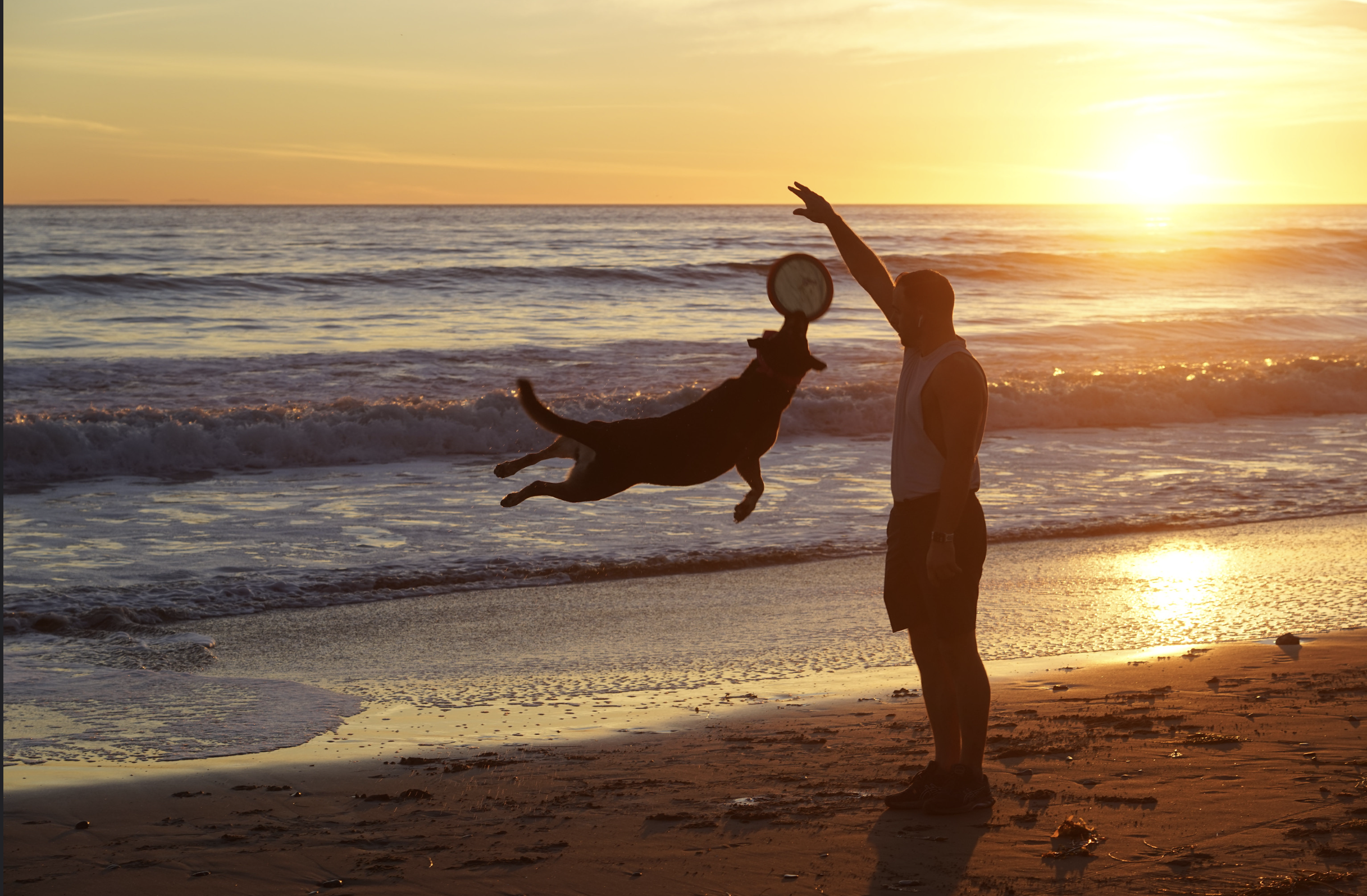
I asked ChatGPT for a three-day itinerary to give visitors to Santa Barbara. Here ya go:

Day 1:

  • Start the day with breakfast at the Shoreline Beach Cafe, which has a beautiful view of the ocean.
  • After breakfast, head to Knapp’s Castle for a scenic hike and exploration of the ruins of a 20th century mansion. The hike offers stunning views of the Santa Ynez Valley.
  • For lunch, grab some sandwiches or salads from the nearby Panino’s, a local favorite with fresh, high-quality ingredients.
  • Spend the afternoon exploring downtown Santa Barbara, with its charming shops and cafes. Don’t miss a visit to the Santa Barbara County Courthouse, a stunning Spanish Colonial Revival building with a beautiful clock tower that offers a panoramic view of the city.
  • For dinner, head to Tee-Off, a local institution that has been serving up classic American fare since 1949.

Day 2:

  • Start the day with a hike up La Cumbre Peak, which offers stunning views of Santa Barbara and the Channel Islands.
  • For lunch, grab some tacos from La Super-Rica Taqueria, a casual spot that was a favorite of Julia Child.
  • Spend the afternoon exploring the Santa Barbara Botanic Garden, which showcases native plants and offers a peaceful escape from the city.
  • For dinner, head to the Stagecoach Inn, a historic restaurant that serves up classic American fare in a cozy setting.

Day 3:

  • Start the day with breakfast at Jeannine’s Bakery, a local favorite known for its delicious baked goods and breakfast items.
  • Spend the morning at Hendry’s Beach, a local favorite with beautiful views and great walking trails.
  • For lunch, grab some sandwiches or salads from South Coast Deli, a local favorite with fresh ingredients and creative flavor combinations.
  • Spend the afternoon exploring the Santa Barbara Museum of Art, which features a diverse collection of artwork from around the world.
  • For dinner, head back to downtown Santa Barbara and choose from one of the many restaurants in the area, depending on your preference. Some options include Olio e Limone Ristorante, Los Agaves, and The Lark.

I wouldn’t disagree with any of it, except maybe to note that Hendry’s Beach at sunset (where and when I shot the photo above) is mighty fine.

Of course, the answer will vary with every regeneration, but what the hell. It’s very early in our co-evolution with whatever the hell we and AI are together becoming.

☑️ ☆

A workflow challenge

I shoot a lot of pictures. Most are from altitude (such as the above). But lots are of people and places, for example, here are a few I shot at DWebCamp last summer with my new Sony A7 IV camera (to which I migrated last year after many years shooting Canon):

Importing and curating photos is the only organized thing I do in life. Let me explain.

Under each of those photos is the name of the file. These are the actual file names, not ones stored in the library of some app and remembered at the meta-level. None are called DSCN0401.JPG, IMG_4523.JPG, or IMG_1874.PNG. I’ve given all of them meaningful names, all by the same convention: YYYY_MM_DD_name-of-event. Every file in every folder has the same name as the folder, with a number appended to it. The numbers are chronological. Each event’s folder goes into a month folder, each of those goes into a year folder, and all years go into a folder called pix-by-year. That folder has years going back to 1869. (The earliest are scans, such as this one.)

I organize and name all my photos with a piece of software originally called iView Media Pro, then Expression Media 2 (after Microsoft bought it), and finally Phase One Media Pro (after Microsoft abandoned it). I like the second version best, so that’s what I use.

Here is a short and partial list of all the things Expression Media 2 can do:

  1. Rename files in the Finder, very selectively, alone, or in batches (much more smoothly and easily than can be done with Adobe Bridge or Apple’s Shortcuts or Automator).
  2. Search for any variable, or combination of variables
  3. Sort by up to 24 variables (file name, size, date created, date modified…)
  4. Resize selectively
  5. Open any files with any other app
  6. Bring multiple photos (files) from multiple directories into a single catalog, to organize any way I want. Also to export, rename, or whatever, including—
  7. Run a slide show, with many choices of presentation (much more than with Apple’s Photos), and save shows as movies
  8. Open any file or collection of files in any other app (for me that’s usually Photoshop 2021)
  9. Basic image edits
  10. Rotate, flip, zoom in and out
  11. See and edit EXIF data for every shot
  12. Find missing and duplicate items
  13. Show or hide any file or combinations of files
  14. Move files in the Finder
  15. Operate in lieu of the finder when dragging or dropping into a Web page or another app
  16. Arrange or tile photos by hand or by sort
  17. Log and show actions
  18. Place images on a map
  19. Make a .pdf of any image or collection of them
  20. Turn galleries into pages in .html
  21. Import and export to and from .xml

I don’t do all that stuff, but I list it because I want to remember what I know I will lose when I move from this 2017 MacBook Pro running Mojave to my new 16″ 2023 M2 Max MacBook Pro. That will happen later today after I upgrade both machines to the latest version of Ventura. When that happens, Expressions Media 2, a 32-bit program last updated in 2013, will be kaput. And I will need to find another workflow.

Maybe Expression Media 2 will survive through emulation or something. Or maybe Phase One Media Pro (also last updated in 2013) will work.

Or maybe one of ya’ll has a better way to manage workflow than I’m using now. I’m open.

Meanwhile, here goes…

[Later (May 10, 2023)…] I am now working with my new M2 Macbook Pro, and I feel like I am missing limbs. The only prostheses I have are the limited choices that come with Apple’s Finder and Adobe Bridge. So again, help is welcome. Thanks.


Addendum: If you’re wondering why I’m not running my life on Linux and free and/or open-source software, the main reasons are Photoshop and Lightroom. I’ve tried Gimp and it doesn’t cut it. Photoshop knows the camera and lenses I’m using, and its tools, such as dehaze, are extremely useful. See the photos here? Thank dehaze for making the detail pop out. (Yes, Gimp de-hazes, but not easily.) I hate being trapped in Apple’s castle as much as the next serf, but shooting as much as I do requires tools I can use quickly and easily.

❌