Vue lecture

Il y a de nouveaux articles disponibles, cliquez pour rafraîchir la page.
🔲 ☆

Generating running routes with GPT-6 Astra and ChatGPT Work

Here's a neat thing I had ChatGPT Work with GPT-6 Astra (Max) do this morning:

I live at <my address>. Figure out 5K and 10K running routes from me that loop from my house. Use OSM data.

It worked for 27 minutes and produced exactly what I'd asked for, as both an embedded visualization and downloadable GPX file and GeoJSON files. Here's that 5K route:
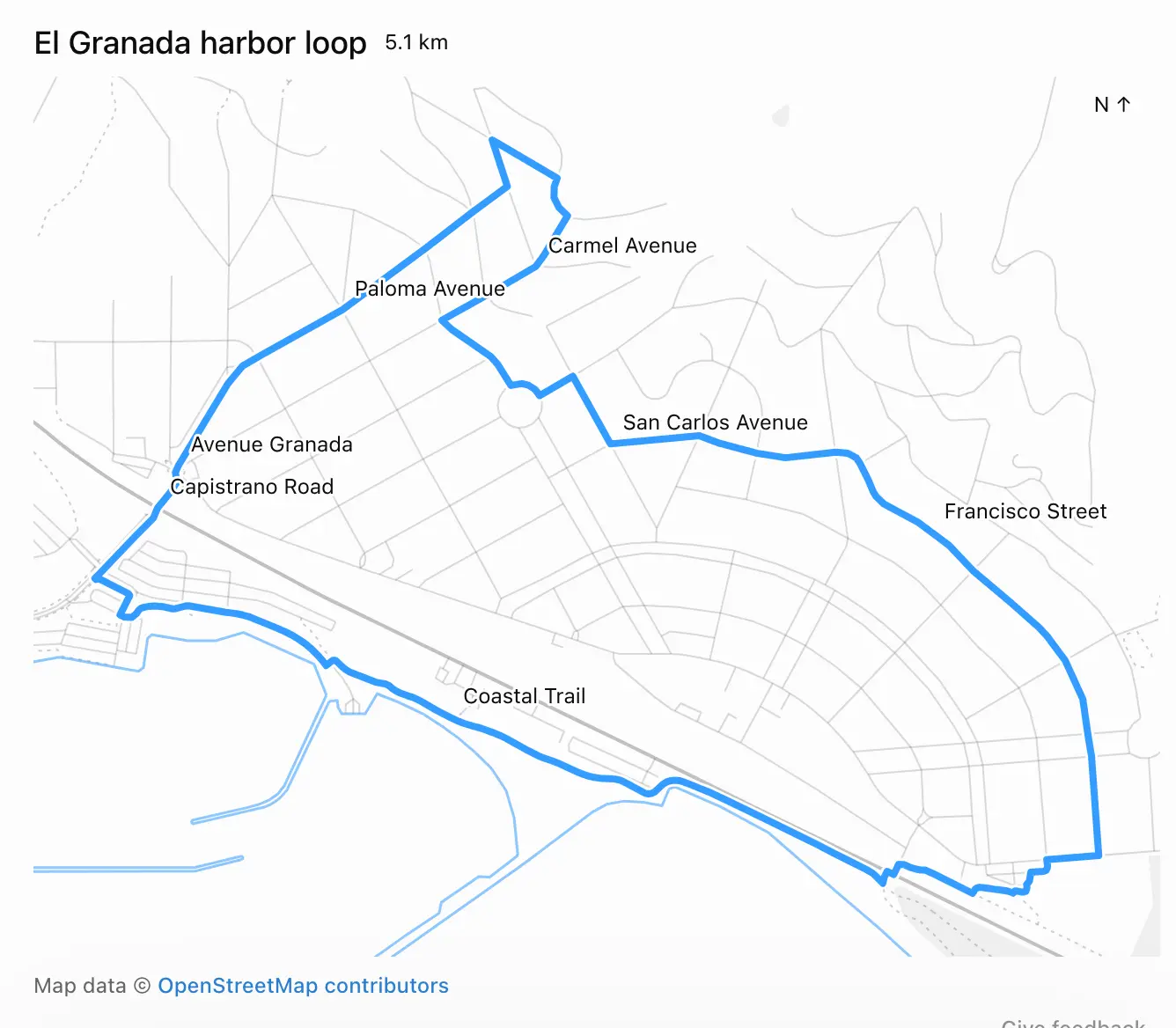
Map screenshot showing a blue route line over a light grey street map. Text: El Granada harbor loop 5.1 km. N ↑ (top right). Street labels along the route: Carmel Avenue, Paloma Avenue, San Carlos Avenue, Avenue Granada, Capistrano Road, Francisco Street, Coastal Trail. The loop runs from the harbor at the bottom left, north along Avenue Granada and Paloma Avenue to a northern point near Carmel Avenue, then east along San Carlos Avenue and south down Francisco Street to the far right, before returning west along the Coastal Trail beside the coastline. Footer: Map data © OpenStreetMap contributors. Give feedback.

When I asked it how it had created the route, it replied:

I used Nominatim to locate the address and Overpass to download local OpenStreetMap roads and trails, then calculated the loops locally.

Frustratingly, the actual code it ran and exact details of what it did weren't visible to me in the ChatGPT UI. I see this lack of transparency is an anti-feature.

By the time I thought to ask for a copy of the Python code it had used, ChatGPT was unable to provide it. This appears to be because the thread had been compacted. I think any LLM system that uses compaction needs to both preserve the pre-compacted text and make that text available via agent tool calls, to protect against this kind of problem.

As for displaying the map to me, that used the visualize skill. It created a file called /workspace/el-granada-5k-share.html to embed directly into the ChatGPT UI.

Here's a copy of that HTML, which starts like this:

<div id="eg-share-loop">
  <div class="viz-row"><h3>El Granada harbor loop</h3><span class="text-small">5.1 km</span></div>
  <div id="eg-share-stage"></div>
  <div class="text-small text-muted">Map data © <a href="https://www.openstreetmap.org/copyright" target="_blank" rel="noopener">OpenStreetMap contributors</a></div>
  <style>
    #eg-share-loop { width:100%; }
    #eg-share-loop #eg-share-stage { width:100%; margin:8px 0; }
    #eg-share-loop .eg-share-map { display:block; width:100%; touch-action:none; }
    #eg-share-loop .eg-share-map text { fill:var(--foreground); font-size:12px; font-weight:400; }
    #eg-share-loop .eg-share-label { paint-order:stroke; stroke:var(--background); stroke-width:3px; stroke-linejoin:round; }
  </style>
  <script type="application/json" id="eg-share-data">{"route":{"type":"LineString","coordinates":[[-122.467425,37.4997753] ...</script>
  <script src="https://cdn.jsdelivr.net/npm/d3@7.9.0/dist/d3.min.js"></script>
  <script>
  (() => {
    const root=document.getElementById('eg-share-loop');

The <script type="application/json"> element contains the full geometry needed to render both the running route and the map itself, using D3, which is loaded from an allow-listed CDN location described in this section of the visualize skill:

External resources

  • The CSP allows only cdnjs.cloudflare.com, esm.sh, cdn.jsdelivr.net, unpkg.com, fonts.googleapis.com, fonts.gstatic.com, and fonts.bunny.net. Other origins are blocked and fail silently.

Tags: geospatial, ai, d3, openai, generative-ai, chatgpt, llms, skills, gpt-6-astra
🔲 ☆

firefox parser/html/java/README.txt

firefox parser/html/java/README.txt

TIL (or TIR - Today I was Reminded) that the HTML5 Parser used by Firefox is maintained as Java code (commit history here) and converted to C++ using a custom translation script.

You can see that in action by checking out the ~8GB Firefox repository and running:

cd parser/html/java
make sync
make translate

Here's a terminal session where I did that, including the output of git diff showing the updated C++ files.

I did some digging and found that the code that does the translation work lives, weirdly, in the Nu Html Checker repository on GitHub which powers the W3C's validator.w3.org/nu/ validation service!

Here's a snippet from htmlparser/cpptranslate/CppVisitor.java showing how a class declaration is converted into C++:

    protected void startClassDeclaration() {
        printer.print("#define ");
        printer.print(className);
        printer.printLn("_cpp__");
        printer.printLn();

        for (int i = 0; i < Main.H_LIST.length; i++) {
            String klazz = Main.H_LIST[i];
            if (!klazz.equals(javaClassName)) {
                printer.print("#include \"");
                printer.print(cppTypes.classPrefix());
                printer.print(klazz);
                printer.printLn(".h\"");
            }
        }

        printer.printLn();
        printer.print("#include \"");
        printer.print(className);
        printer.printLn(".h\"");
        printer.printLn();
    }

Here's a fascinating blog post from John Resig explaining how validator author Henri Sivonen introduced the new parser into Firefox in 2009.

Via Hacker News conversation

Tags: c-plus-plus, firefox2, henri-sivonen, java, john-resig, mozilla

🔲 ☆

The new ChatGPT Images is here

The new ChatGPT Images is here

OpenAI shipped an update to their ChatGPT Images feature - the feature that gained them 100 million new users in a week when they first launched it back in March, but has since been eclipsed by Google's Nano Banana and then further by Nana Banana Pro in November.

The focus for the new ChatGPT Images is speed and instruction following:

It makes precise edits while keeping details intact, and generates images up to 4x faster

It's also a little cheaper: OpenAI say that the new gpt-image-1.5 API model makes image input and output "20% cheaper in GPT Image 1.5 as compared to GPT Image 1".

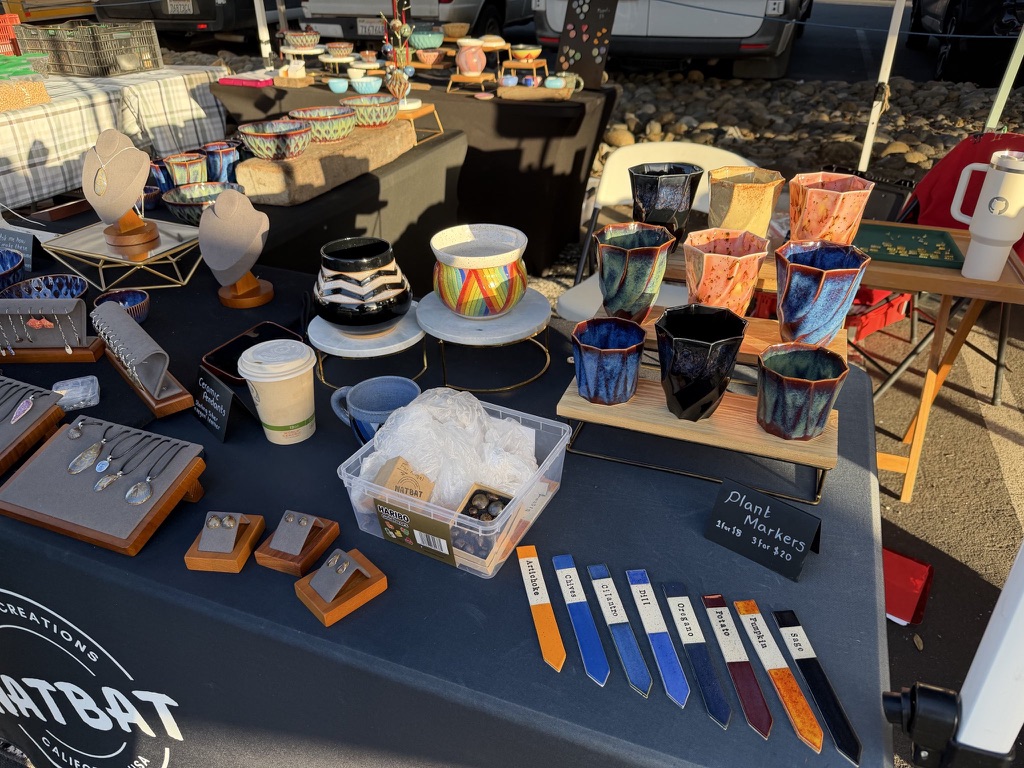
I tried a new test prompt against a photo I took of Natalie's ceramic stand at the farmers market a few weeks ago:

Add two kakapos inspecting the pots

Outdoor craft market booth displaying handmade ceramics and jewelry on a navy tablecloth with "NATBAT CREATIONS CALIFORNIA USA" logo. Items include colorful glazed ceramic cups in blue, orange, and black; decorative bowls including a rainbow-striped piece; jewelry pendants and earrings on wooden display stands; ceramic plant markers in various colors labeled "Artichoke", "Cilantro", "Chili", "Oregano", "Potato", "Pumpkin", "Sage".

Here's the result from the new ChatGPT Images model:

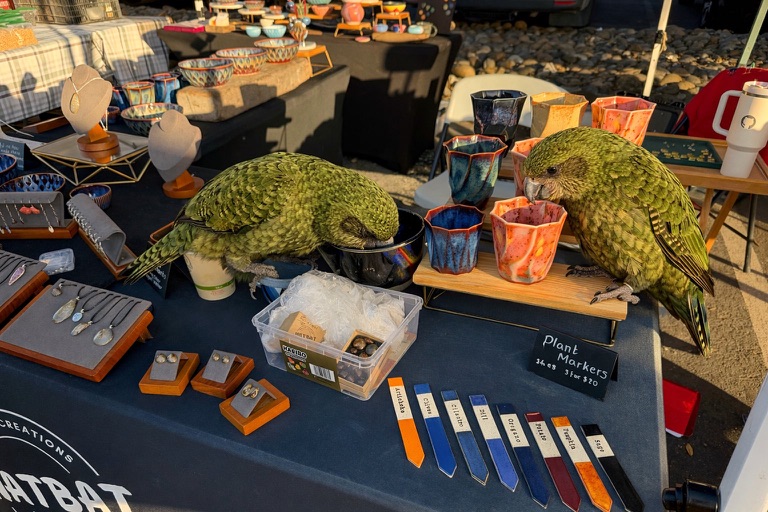
Same craft market booth as previous image, now with two large olive-green Kākāpō parrots perched on the table among the ceramics, one investigating the blue glazed cups and the other examining an orange cup.

And here's what I got from Nano Banana Pro:

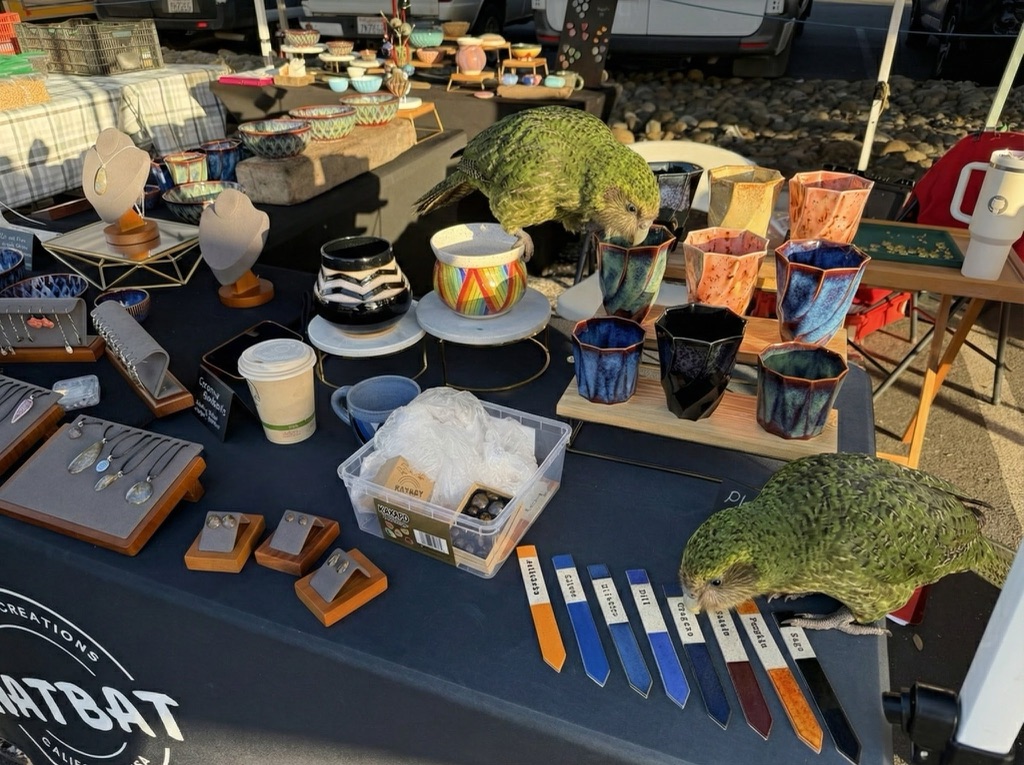
Same craft market booth with two Kākāpō now in different positions: one remains center-table peering into the ceramic cups near the rainbow pot, while the second has moved to the right edge of the table near the plant markers, appearing to examine or possibly chew on items at the table's corner. They are both a little smaller than in the first image.

The ChatGPT Kākāpō are a little chonkier, which I think counts as a win.

I was a little less impressed by the result I got for an infographic from the prompt "Infographic explaining how the Datasette open source project works" followed by "Run some extensive searches and gather a bunch of relevant information and then try again" (transcript):

Infographic titled "HOW DATASETTE WORKS" with subtitle "THE OPEN SOURCE DATA PLATFORM" showing a four-step workflow. STEP 1 (orange): "LOAD YOUR DATA" - "CSV, JSON, XLSX, SQLite, PostgreSQL, etc." with icons of file types flowing into a laptop. Below: "IMPORT DATASETS - Turn your structured data into SQLite databases and .db files." with checkmarks for "Datasette Desktop App for local deployment", "CLI tool for command-line imports", "Automatic CSV import tool". STEP 2 (green): "PUBLISH & DEPLOY" - "HOST DATASETS ONLINE" with cloud and server icons labeled "DEPLOY". Below: "SHARE ONLINE - Deploy your Datasette instance to a public server." with checkmarks for "Datasette Cloud - Free hosting service", "Deploy anywhere via plugins", "Configurable API tools". STEP 3 (purple): "EXPLORE & QUERY" - "BROWSE, SEARCH & VISUALIZE" with database and browser window icons. Below: "SQL QUERIES & SEARCH - Browse, filter, search, and visualize your data with an interactive web interface." with checkmarks for "Perform SQL queries directly from the browser", "Filter, sort, and facet data", "Generate custom visualizations and charts". STEP 4 (red): "BUILD & EXTEND" - "PLUGINS, APIS & INTEGRATIONS" with gear and wrench icons labeled "API". Below: "CUSTOMIZE & DEVELOP" with bullets "Develop custom plugins for added functionality", "Access JSON API for programmatic queries", "Embed and integrate Datasette into other applications". Bottom banner shows four features: "OPEN DATA PLATFORM - Widely used for visualizing, sharing and building applications with SQLite backed data", "EXTENSIBLE PLUGINS - 100+ plugins available, inc uding chaps, charts authentication, and more", "ACCESS CONTROL - Granular permissions for controlling who s an access and interact with your data", "OPEN SOURCE PROJECT - Actively developed open source project with a vibrant community of contributors".

See my Nano Banana Pro post for comparison.

Both models are clearly now usable for text-heavy graphics though, which makes them far more useful than previous generations of this technology.

Tags: ai, kakapo, openai, generative-ai, text-to-image, nano-banana

❌